View your latest and previous bills in the My One NZ app or online.
Before you begin.
Know your account type.
Ensure you are following the right process by checking whether you are a One NZ A, One NZ B, or One NZ C
customer.
Make sure:
- You can sign in to My One NZ.
- You have the right level of access to view bills for the account.
You can also receive your bills by email or post. Change how you receive your bill .
Need more help? Get help with billing
Steps:
My One NZ App (One NZ A or One NZ B)
View your bill in the My One NZ app
- Open the My One NZ app and sign in.
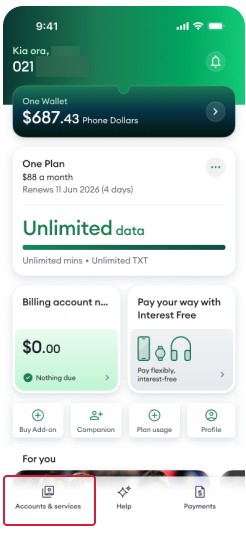
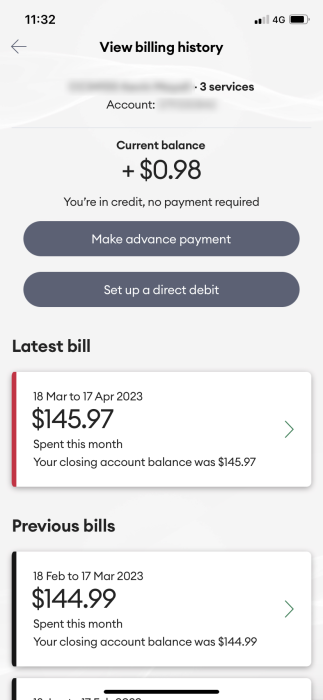
- If you have more than one account or service, tap Accounts & services and choose the one you want to view

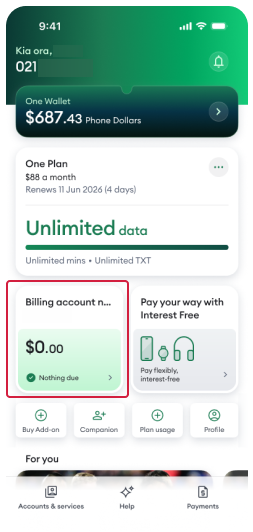
- Tap the billing account tile

- Select your Latest bill, or scroll to Previous bills and choose the bill you want to view.Your bill will open

My One NZ - Online (One NZ A)
View your bill online
- Sign in to My One NZ Online
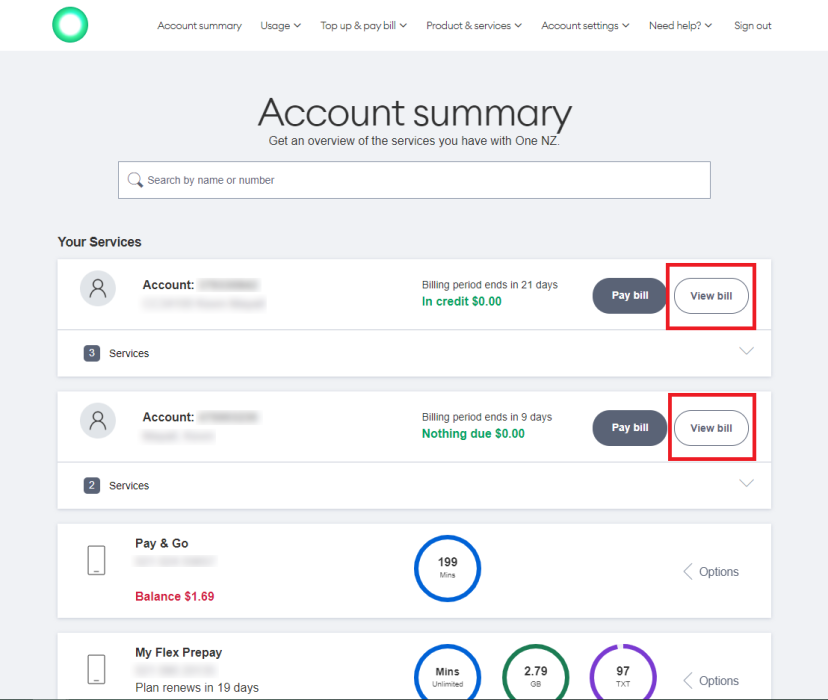
The Account Summary screen appears.

- Find the account you want to view and select View billThe past 12 months of your bills appears.

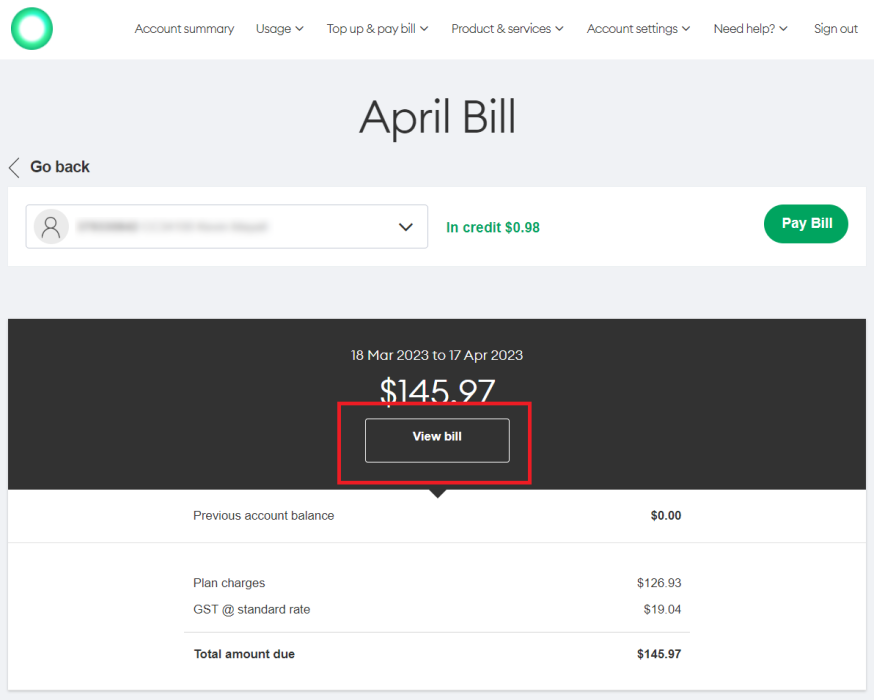
- In the row of the bill you wish to view, click the arrow.A screen with a summary of the month's charges appear.

- Click View billThe bill you selected to view will be displayed.



My One NZ - Online (One NZ B)
- Sign into My One NZ
, selecting Internet & landline

- In the My One NZ section, click My Bills
The My bills screen appears.
- From the Please select a bill drop-down menu, select a bill date.
- Click View invoice
After clicking View invoice, a PDF version of your invoice appears.

CustomerZone
- Sign in to Customer Zone
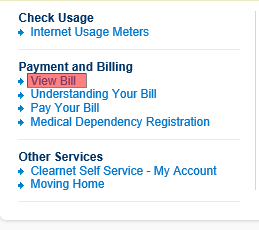
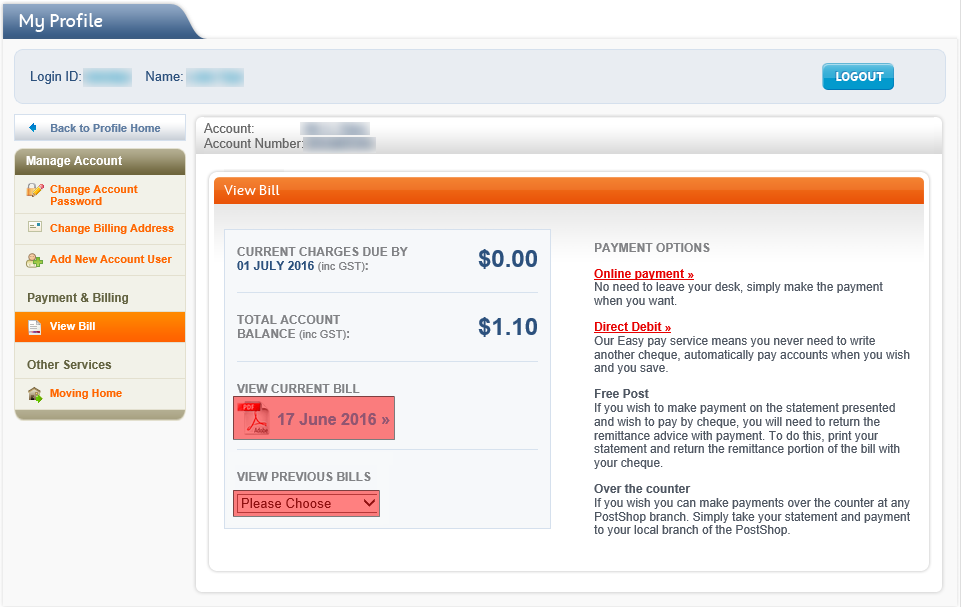
The My Profile page appears. - Click View bill

- The View Bill section lets you view your current and past bills:
- View your current bill: In the VIEW CURRENT BILL section, click the PDF icon.
- View previous bills: From the VIEW PREVIOUS BILLS drop-down menu, select the required invoice date.